Articles · google business profile
How to verify a Google Business Profile
You cannot choose how Google verifies your Business Profile; it shows you the methods it will accept. If you work from home or travel to customers, decide first whether you are a storefront or a service-area business, then plan one unbroken video of at least 30 seconds that shows where you operate, that the business exists and that you run it.

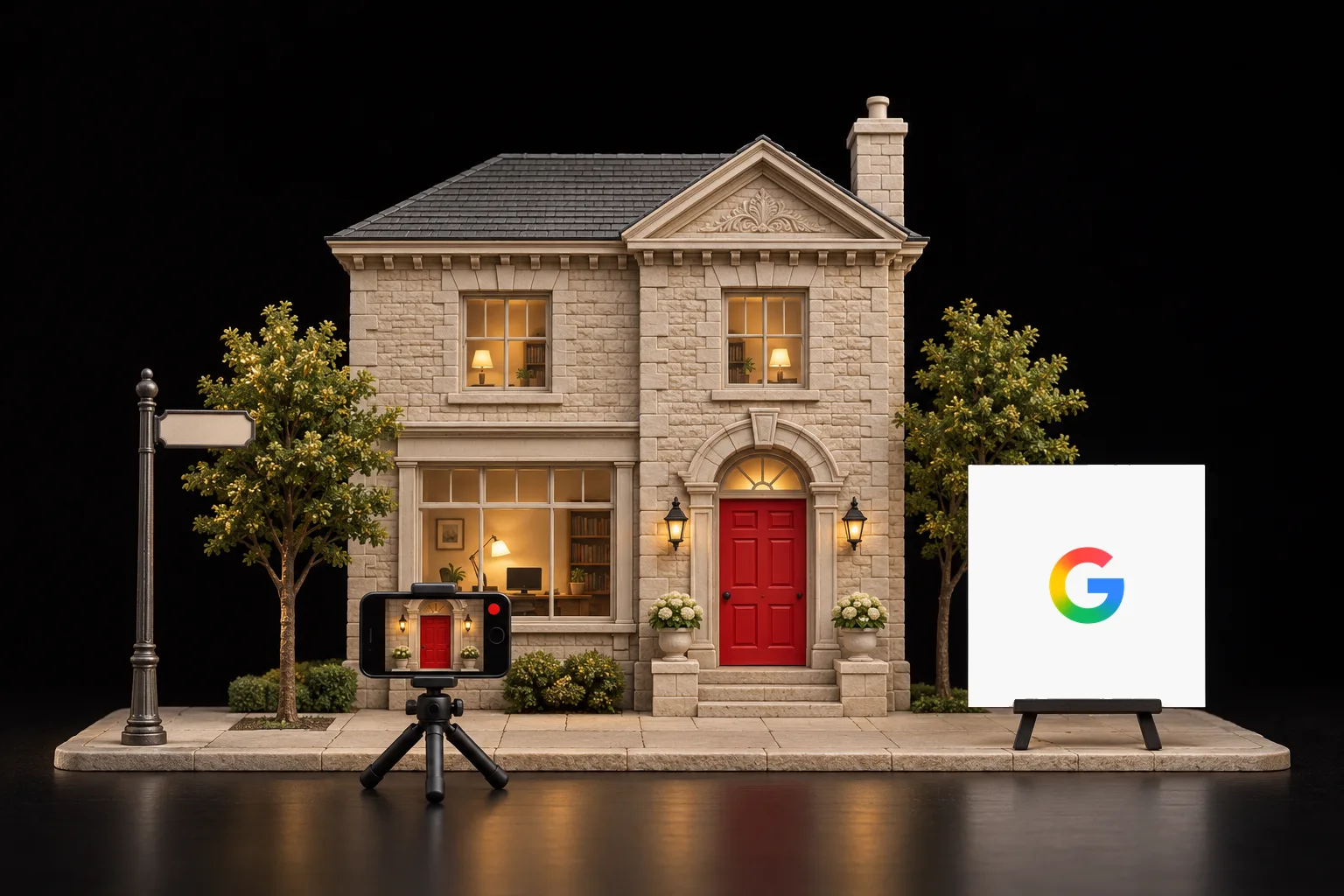
Until your Business Profile is verified, you can’t change your hours, fix the business name or deal with customers through it. Google holds the profile until it knows the person editing it runs the business.
The first thing to know is that you don’t pick the method. Google’s verification page says so directly: “Verification methods are automatically determined by Google and can’t be changed.” You get the options Google shows you, and your job is to be ready for them. The video takes the most preparation, so most of this article is about that.
The methods Google may offer
Which of these you see depends on your business type, your public information, your region and your hours. Sometimes Google asks for more than one.
- Phone or text. Google sends a code to your business number. An automated phone menu won’t receive it, so a person has to answer.
- Email. Google sends a message to the address shown on the verification screen, and you follow the steps in it.
- Video recording. You film the business on your phone and upload it through the profile. Google says: “If your business is eligible for video verification, we recommend that you use this option.”
- Live video call. You show the same things to a support representative, during your business hours.
- Postcard. Google mails a 5-digit code to the address. “Most codes arrive within 14 days,” and a code expires after 30 days.
If you get the postcard, leave the profile alone while you wait. Changing the business name, address or category makes the mailed code stop working, and asking for a new code cancels the one already in the mail.
Storefront or service area: settle this first
What the video has to show depends on which kind of business you are listed as, so get this right before you film. In Google’s video instructions, a storefront serves customers in person at a location with permanent signage. A service-area business goes to its customers, or offers services, but does not serve them at its own address. Google’s examples are a locksmith and a plumber.
For the second kind, the instruction is blunt: “If you don’t serve customers at your business location, do not add your business address to your Business Profile.” The guidelines name the home-office case. If you are a plumber and run the business from a residential address, clear the address from the profile.
Hiding the address does not hide the business. You set a service area instead, and the guidelines say it should reach no farther than about two hours of driving from where you are based.
A home office can show its address when it works like a shop. The guidelines ask a business that shows its address to keep permanent signage of its name there, and a location that serves customers to be staffed and able to receive them during its stated hours. If yours does both, list the address. If it doesn’t, hide it and film the service-area version.
What the video has to show
The recording rules are the same for everyone. The video has to be captured live, in one take with no breaks and no editing. It has to be at least 30 seconds long, and recorded and uploaded from a phone through your Business Profile. Leave out bank, tax and ID numbers, private information, and other people’s faces.
For a service-area business, Google asks for three things:
- Where you operate. Film street signs or nearby landmarks at your business address. If you work from home, Google’s tip is that “you can record landmarks and signs in your immediate neighborhood to verify the address.”
- That the business exists. Show the tools, equipment or products you work with. Your workspace, business cards and branded clothing all count.
- That you run it. Film yourself doing the work, or opening something only the business has, like a van with your name on it. A business permit, an invoice or a utility bill works too, if the name matches the one on your profile.
A storefront video covers the same three points differently: the street and the businesses next door, your name on a permanent sign, and something only staff can reach, such as the till or the stock room.
Plan the take before you record
Because it is one unbroken take, the order matters more than the camera work. This is how I would set it up:
- Check that the name on your documents and signage matches the profile letter for letter.
- Lay out one document and cover any account or ID numbers on it.
- Walk the route once without recording, from the street sign to your workspace.
- Record it in one go, slowly, with nobody else in the frame.
- Watch it back before you upload. If something is missing, record it again.
After you upload
Google reviews the video, and its page says: “This process can take up to 5 business days.” Then you hear one of two things. Either you are verified, or the video did not meet the requirements and Google tells you why. In that case the profile shows Review issues. Open it, read the reasons and record again. The new video has to include everything the first one showed, plus whatever was missing.
You can delete the video from your profile settings at any time, and Google says it deletes it later if you don’t.
If the video keeps failing, try another method your profile offers before you contact support. Google asks for that order.
Expect to do this again someday. Changing your business details can bring the Get verified button back, and the steps are the same ones your profile shows you.
If you would rather hand this off, Google Business Profile setup is $249 one-time, and it is included on my Professional and Premium website tiers. The details are on the Google Business Profile page.